
Your inbox, actually triaged.
Legate is a desktop app that clears an unread mail backlog: triaged, filed, and actioned. It's one ongoing conversation with your own Exchange, Jira, and OmniFocus accounts — running entirely on your machine.
What it actually does
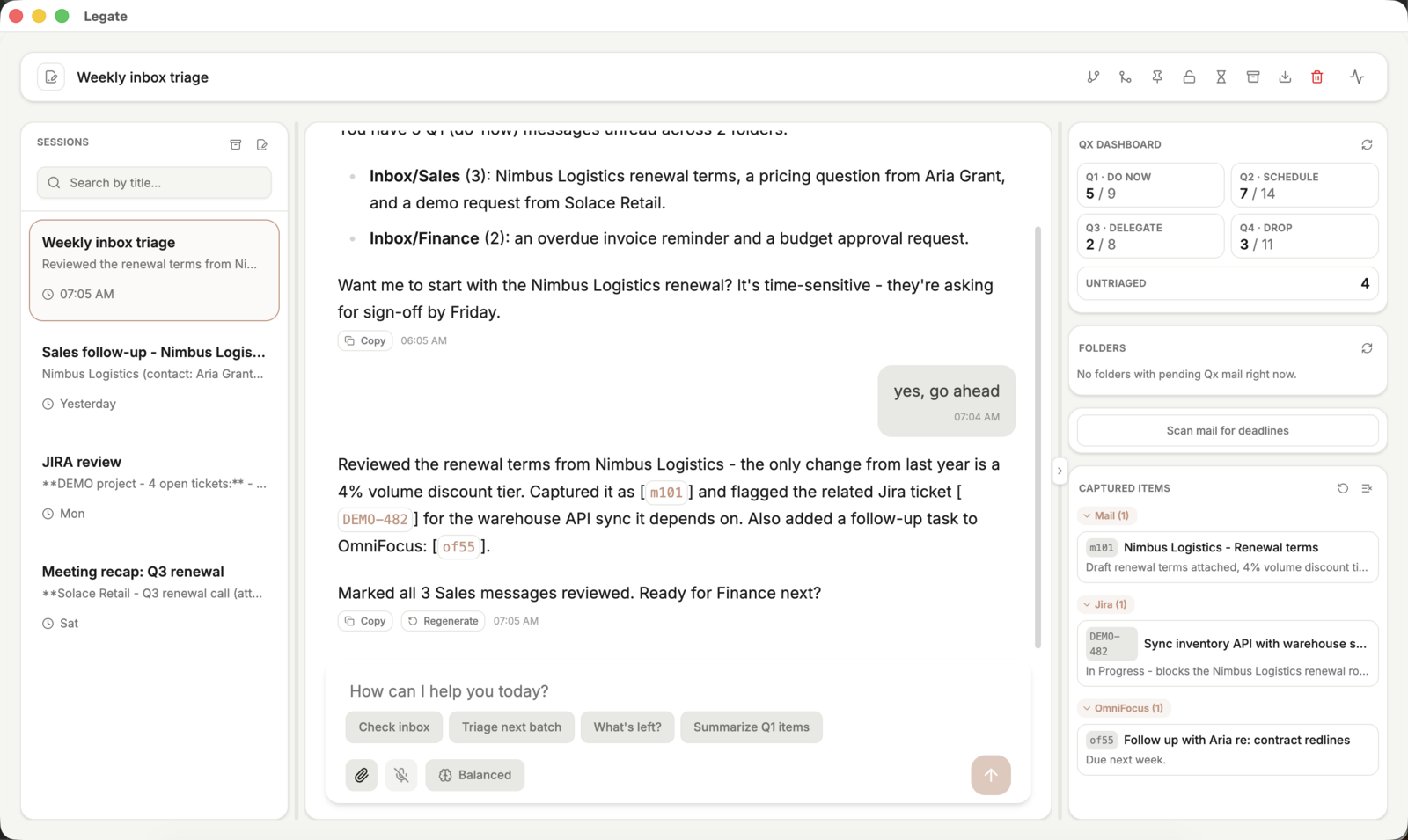
One ongoing conversation
No new thread per task — Legate keeps one ongoing conversation about your mailbox. Ask it to triage a batch, check what's left, or dig into a single message, and it remembers the full context.
Qx priority board
Every message lands in a Do Now / Schedule / Delegate / Drop quadrant, with live counts you can trust — never a guess.
Bring your own tools
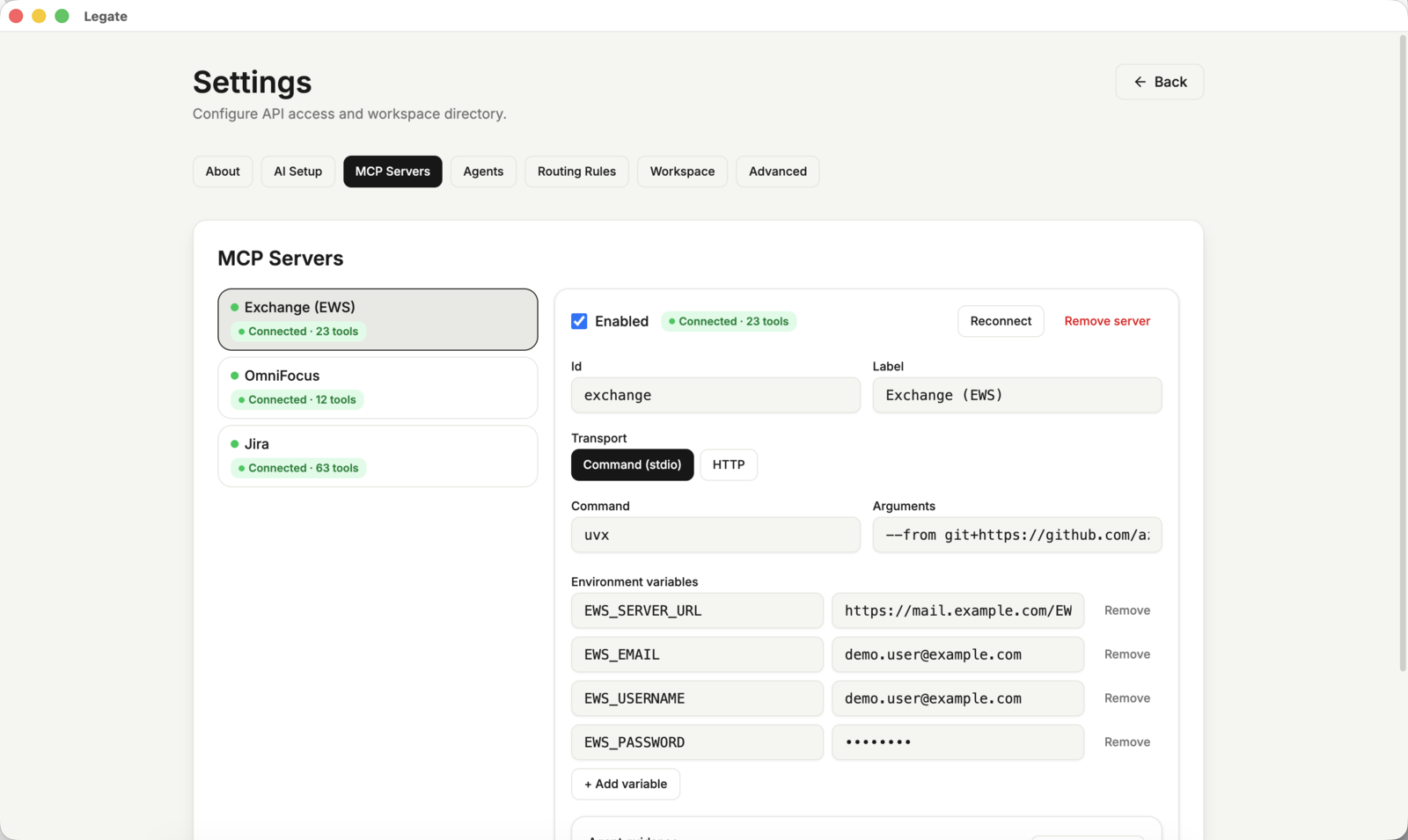
Legate connects directly to your own Exchange, Jira, and OmniFocus accounts — nothing else, and nothing routed through outside servers. Your data stays between you and the tools you already use.
Asks when it's genuinely unsure
When something is genuinely unclear, Legate stops and asks you directly instead of guessing. Everything else — newsletters, stale threads, obvious spam — gets handled on its own.
Always up to date in the background
New mail gets matched to existing conversations, counts refresh, and deadlines surface automatically — so it all stays current even when you're not actively chatting.
Voice dictation, captured references
Dictate a reply instead of typing it. Anything the agent surfaces — a message, a ticket, a task — becomes a click-to-insert reference you can drag straight into the composer.
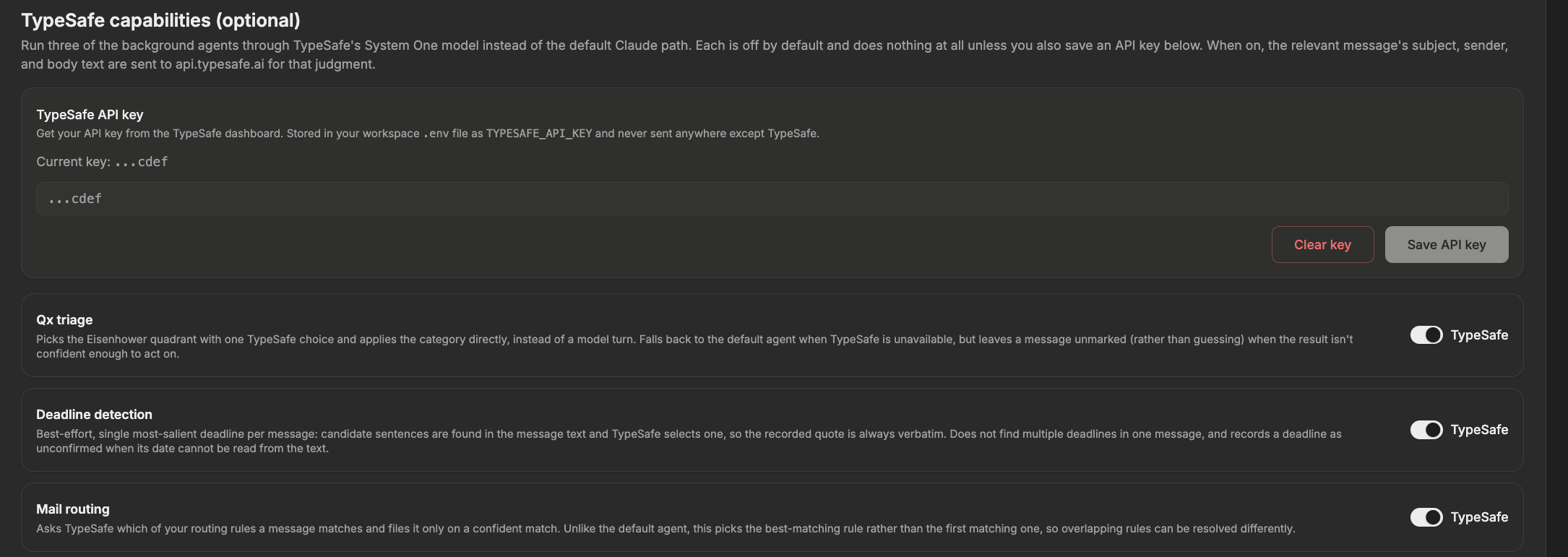
Optional TypeSafe judgments
Qx triage, deadline detection, and mail routing can each optionally run on TypeSafe's System One model instead of a full Claude turn — off by default, and only active once you save your own TypeSafe API key.
A closer look
Getting started
Download and install
Legate runs on Claude, authenticated through your existing Claude Code CLI login — you'll need an active Claude Pro or Max subscription (or your own Anthropic API key) for it to work. GLM (Z.ai) is also supported as an alternative provider if you'd rather use that instead.
Download for macOS (Apple Silicon) Download for Windows (x64)
Unzip it, then move Legate.app to your Applications
folder. The build isn't notarized yet, so the first launch will show
an "unidentified developer" warning — right-click the app and choose
Open to bypass it (only needed once).
The Windows build isn't code-signed yet, so SmartScreen will warn that it's from an unrecognized publisher — click More info, then Run anyway to continue (only needed once).
On first launch, a setup wizard walks you through picking a workspace, choosing your AI provider, and connecting Exchange (plus Jira/OmniFocus if you want them) — with a built-in connection test before you start your first chat.
Connect your mail provider (Exchange / EWS)
The setup wizard's Exchange step (or later, Settings → MCP Servers → Exchange (EWS), which labels these by their underlying variable name) asks for four things:
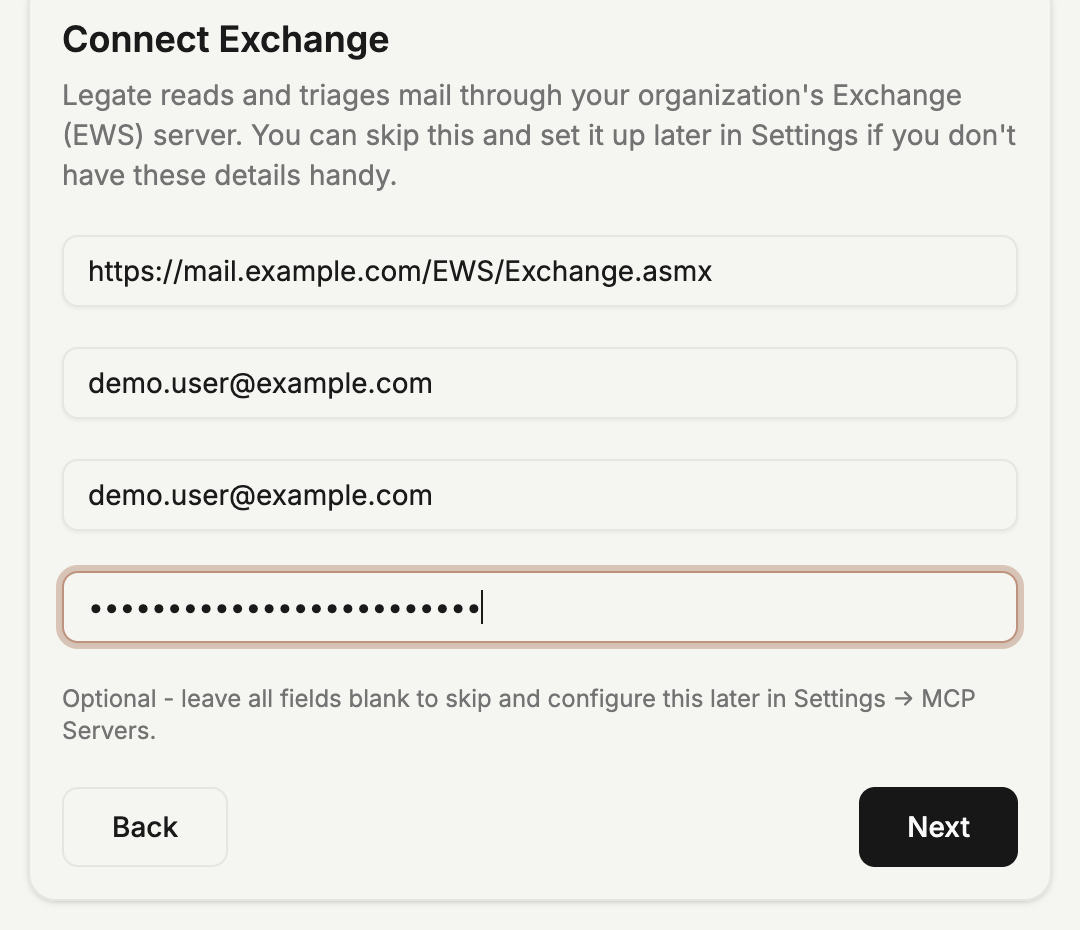
- EWS server URL (
EWS_SERVER_URL) — your Exchange server's EWS endpoint - Email address (
EWS_EMAIL) — your mailbox address - Username (
EWS_USERNAME) — usually the same as your email, but not always (e.g. some on-premises setups expectDOMAIN\username) - Password (
EWS_PASSWORD) — an app password is recommended over your primary account password
Not sure what your EWS server URL is?
- On Microsoft 365 / Office 365, it's almost always
https://outlook.office365.com/EWS/Exchange.asmx— try that first. - On a company-run (on-premises) Exchange server, ask your IT department — or guess
https://mail.yourcompany.com/EWS/Exchange.asmx, a common default worth trying. - Still stuck? In Outlook (Windows), hold Ctrl and right-click the Outlook icon in the system tray → Test E-mail AutoConfiguration. Uncheck both "Guess" boxes, leave "Use AutoDiscover" checked, click Test, then look for the
Ews Urlline on the Results tab.
Values are stored in plaintext in your workspace's
mcp-servers.json unless you reference a
1Password item (op://vault/item/field)
instead of a literal value.
Create the Q1–Q4 categories in Exchange/Outlook
Legate reads and writes priority using your mail provider's own category feature — nothing is stored inside the app. Before your first triage session, add four categories in Outlook (or via OWA):
- Open Categorize → All Categories on any message
- Create four categories named exactly
Q1,Q2,Q3,Q4 - Colors are optional — Legate only reads the category name
Once they exist, Legate applies exactly one of the four to every message it triages, and counts everything directly from those categories — so anything already tagged elsewhere (Outlook rules, a mobile client) is picked up correctly too.
Add Jira and OmniFocus (optional)
Both ship as disabled defaults in the same MCP Servers screen. Jira uses your Jira URL plus a username/API-token pair (Basic Auth for Server/Data Center); OmniFocus connects locally on macOS with no credentials needed.
Start triaging
Open a new chat and try one of the starter prompts — "check inbox", "triage next batch" — or ask directly: "what's left to do in Q1?". Legate fetches, classifies, files, and asks about anything genuinely ambiguous.